You need a computer or tablet with a working camera, microphone, a modern web browser, and a stable internet connection to complete a RON session.
A RON session requires a device with a camera, microphone, modern browser, and reliable internet. No special software downloads are needed in most cases.
Key Takeaways
- A computer or tablet with a front-facing camera and microphone is required
- Chrome, Safari, Edge, or Firefox in their latest versions are recommended
- A minimum internet speed of 5 Mbps download and 2 Mbps upload is necessary
- Smartphones are generally not recommended due to small screen size
- Have your government-issued photo ID ready for on-camera verification
Need help preparing for your RON session?
Our team walks every signer through the technology setup before the session begins. No tech expertise required.
Book NowDevice Requirements for RON
A desktop computer, laptop, or tablet with a camera and microphone is the minimum hardware required for any RON session.

The most reliable option is a laptop with a built-in webcam and microphone. Modern laptops from the past five to seven years almost universally include both. Desktop computers may require an external webcam and microphone, which are inexpensive and widely available. If you use an external webcam, ensure it produces at least 720p resolution so the notary can clearly see your face and your ID during credential analysis.
Tablets such as iPads and Android tablets are also acceptable. They have built-in cameras and microphones that are typically high quality. The main consideration with tablets is screen size. Documents displayed during a RON session include fine print, and a larger screen makes reviewing them much easier. A 10-inch or larger tablet works well, while smaller tablets may require more zooming and scrolling.
Smartphones are technically capable of running most RON platforms, but they are not recommended. The screen is too small to comfortably read documents, and holding the phone steady during the session can be difficult. Some RON platforms explicitly do not support smartphone access. If a smartphone is your only option, prop it up on a stable surface and ensure the camera captures your face clearly throughout the session.
Browser Requirements
Most RON platforms run directly in a web browser, with Chrome being the most universally supported option.
Google Chrome is the preferred browser for virtually every RON platform on the market. It handles the video conferencing, document display, and electronic signature functions reliably. If you use a Mac, Safari is also supported by many platforms. Microsoft Edge and Mozilla Firefox are supported by some platforms but not all. Before your session, check the email invitation from the notary or RON platform for any browser-specific instructions.
Whichever browser you choose, make sure it is updated to the latest version. Outdated browsers may lack the security protocols or media capabilities that RON platforms require. To update Chrome, click the three-dot menu in the upper right, go to Help, then About Google Chrome. The browser will check for updates automatically. Similar update options exist in other browsers under their settings or help menus.
You should also ensure that your browser has permission to access your camera and microphone. When you first join a RON session, the browser will typically prompt you to allow camera and microphone access. Click "Allow" when prompted. If you accidentally denied access in the past, you can reset permissions in your browser settings under Privacy and Security or Site Settings.
Internet Connection Requirements
A stable broadband connection with at least 5 Mbps download and 2 Mbps upload speed is the minimum for a smooth RON session.
RON sessions involve live audio-video streaming in both directions, so internet stability matters as much as raw speed. A wired Ethernet connection is the most reliable option because it avoids the signal fluctuations common with Wi-Fi. If you must use Wi-Fi, sit as close to the router as possible and ask other household members to avoid streaming video or downloading large files during your session.
You can test your internet speed before the session using free tools like Speedtest by Ookla at speedtest.net. Run the test from the same device and location where you plan to join the RON session. If your speeds fall below 5 Mbps download or 2 Mbps upload, consider moving closer to your router, restarting the router, or connecting via Ethernet cable.
Public Wi-Fi at coffee shops, hotels, or airports is not recommended. These networks are often congested, unstable, and may have security concerns. Additionally, the noise and distractions in public locations can interfere with the audio-video recording that Utah law requires. A quiet, private location with a reliable connection is ideal for both legal compliance and a smooth experience.
Camera and Microphone Tips
Position your camera at eye level and ensure your face is well-lit from the front so the notary can clearly see you and verify your identity.
Lighting is more important than camera quality. Sit facing a window during daylight hours, or place a desk lamp behind your screen so light falls on your face. Avoid sitting with a bright window or light source behind you, as this creates a silhouette effect that makes facial verification difficult. The notary needs to compare your live appearance to your photo ID, so clear, even lighting on your face is essential.
Test your microphone before the session. Open your device's system settings and look for Sound or Audio Input. Speak normally and check that the input meter responds. If you are using an external headset or microphone, make sure it is selected as the default input device. Built-in laptop microphones generally work fine for RON sessions, but if your environment is noisy, a headset with a built-in microphone can improve audio clarity significantly.
Close unnecessary applications before the session. Video conferencing uses significant processing power and bandwidth. Closing other programs, especially those that use the camera or microphone like Zoom, FaceTime, or Skype, prevents conflicts and ensures the RON platform has full access to your hardware. Also close bandwidth-heavy applications like streaming services, cloud backup software, or large downloads.
Worried about the technology?
We offer a free pre-session tech check. Connect with us 15 minutes early and we will make sure everything works perfectly.
Book NowID and Document Preparation
Have your government-issued photo ID within arm's reach and ensure documents are uploaded to the platform before the session begins.
During the RON session, the notary will ask you to hold your ID up to the camera. The platform's credential analysis technology will scan the ID, verify its security features, and compare the photo to your live video feed. For best results, hold the ID steady and flat, close to the camera but not touching it. Tilt it slightly to reduce glare from overhead lights. A valid driver's license, state ID, or passport is accepted. Driving Privilege Cards are not valid for notarization in Utah.
Documents for notarization are typically uploaded to the RON platform before the session. In many cases, the notary or a title company will upload the documents and prepare them with electronic signature and notarization tags. If you are responsible for uploading documents yourself, do so at least 24 hours before the session so the notary has time to review them and prepare the signature fields. Accepted file formats are usually PDF, and documents should be clear, legible, and complete.
If your documents include information you want to review carefully, consider printing a copy for your own reference during the session. You can follow along on paper while the notary displays the official electronic version on screen. This is especially helpful for lengthy documents like loan packages or estate planning documents.
Troubleshooting Common RON Tech Issues
Most technical problems during RON sessions are solved by refreshing the browser, checking permissions, or switching to a wired internet connection.
If the platform cannot detect your camera, first check that no other application is using it. Close Zoom, FaceTime, Teams, or any other video app. Then check your browser permissions. In Chrome, click the lock icon next to the URL, find Camera and Microphone, and set both to Allow. If the problem persists, try a different browser or restart your device.
Audio echo or feedback is usually caused by using speakers instead of headphones. The microphone picks up the sound from your speakers and feeds it back into the session. Wearing headphones or earbuds eliminates this problem immediately. If you must use speakers, lower the volume and increase the distance between your speakers and microphone.
Frozen video or choppy audio indicates a bandwidth problem. Close other browser tabs and applications. If you are on Wi-Fi, move closer to the router. If problems continue, connect an Ethernet cable directly from your router to your computer. In rare cases, you may need to reschedule the session for a time when your network is less congested, such as outside of peak evening hours when streaming usage is heaviest.
What NotaryLTD Provides for Your Session
NotaryLTD handles the platform, document preparation, and compliance requirements so you only need to show up with your device and ID.
When you book a RON session with NotaryLTD, we send you a session link via email with clear instructions. The platform we use is browser-based, so no downloads or installations are necessary. We set up the documents, prepare the signature and notarization fields, and handle all recording and journaling requirements under Utah law.
Our sessions are available seven days a week from 9 AM to 9 PM Mountain Time. RON sessions are priced at $25 per notarial act, as listed on our pricing page. With over 30 years of notary experience and NNA Certified Signing Agent credentials, Debbie Cuha at NotaryLTD ensures every session is conducted professionally and in full compliance with Utah law, including the new requirements under SB 139.
If you have questions about technology requirements or want to do a practice run before your session, call us at 435-565-1333 or visit our contact page. We are happy to walk you through the setup so your session runs smoothly from start to finish.
Ready to schedule your RON session?
NotaryLTD makes remote notarization simple. Commission #742886, NNA Certified, available 7 days a week.
Book NowFrequently Asked Questions
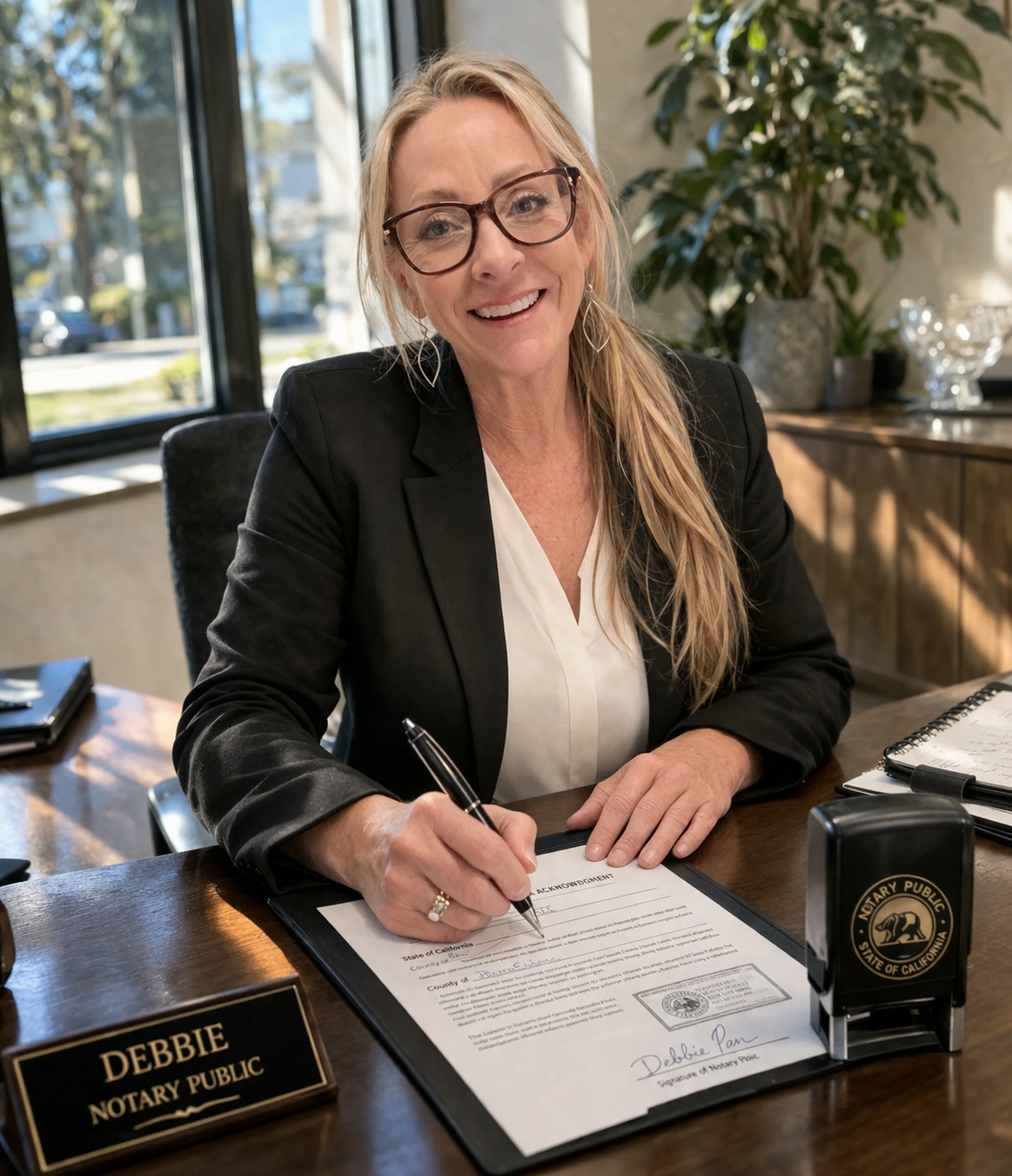
About the Author
Deborah Cuha
Licensed Utah Notary Public (Commission #742886) with 30+ years of experience. NNA Certified Loan Signing Agent and Certified Remote Signing Agent. Based in Park City, serving Summit, Wasatch, and Salt Lake counties.
Read Full Bio →